
Screen Mirroring TV & Miracast
Mirror Phone Screen To TV Wirelessly
Screenshots
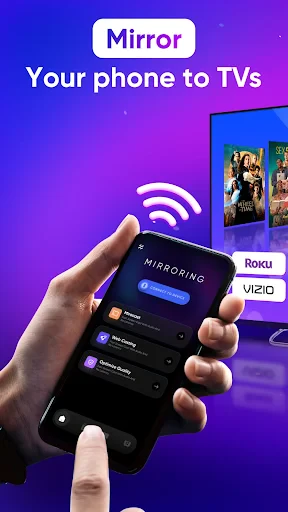


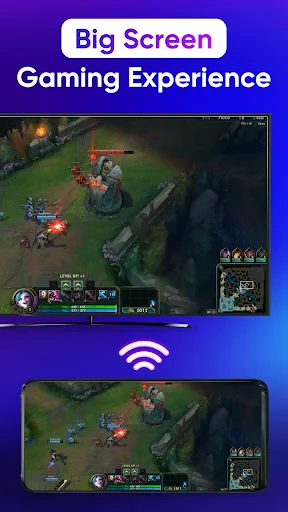
Bring Your Small Screen to the Big Screen with Screen Mirroring TV & Miracast
Have you ever found yourself squinting at your phone screen while trying to share a funny video or a photo album with friends? Enter Screen Mirroring TV & Miracast, an app that promises to bring your mobile content to the big screen with ease. I decided to take it for a spin and see if it really makes sharing media as seamless as it claims.
Setting Up the App on Your Devices
So, setting up the app is pretty straightforward. First things first, make sure your TV supports Miracast or has a compatible streaming device. You'll also need your phone and TV on the same Wi-Fi network. Once that's sorted, downloading and installing the app was a breeze. The interface is simple, almost bare-bones, which is great because it keeps things from getting too complicated. Just a couple of taps and I was ready to mirror my screen.
What It's Like to Mirror Your Screen
When it comes to actually mirroring your screen, the app does a decent job. I was able to cast my phone display onto my TV without any noticeable lag. Whether I was streaming a video or showing off some vacation photos, the transition was smooth. However, there were a few hiccups with certain apps not displaying correctly, but nothing too major that a quick app restart couldn't fix.
One thing I loved was how responsive the mirroring was. It felt like I was navigating my phone directly on the TV screen, which is perfect for presentations or gaming. Speaking of gaming, while casual games worked fine, there was a slight delay with more graphics-intensive ones—I guess that's something to keep in mind if you're planning a gaming marathon.
How Well It Works With Different Gadgets
Screen Mirroring TV & Miracast claims to work with a variety of devices, and from my testing, it seems to hold up. I tried it with both an Android phone and a tablet, and it worked seamlessly on both. The app does seem to favor newer devices, though, as my older tablet struggled a bit with the connection.
Performance-wise, as long as you have a stable Wi-Fi connection, you should be golden. The app doesn't seem to consume too much battery, which is a plus if you're planning on using it for extended periods. Just make sure your phone's not on low power mode, as that can interfere with the connection.
Wrapping Up My Experience
In the end, Screen Mirroring TV & Miracast does what it sets out to do—bring your small screen to the big screen, and it does it pretty well. It's not perfect, but for casual use, it’s more than adequate. If you're looking for an easy way to share your media with friends and family without huddling around a tiny screen, this app is definitely worth a try. Just keep your expectations in check if you're planning on using it for high-stakes gaming or professional presentations where every second counts.
Overall, if simplicity and ease of use are what you’re after, give Screen Mirroring TV & Miracast a shot. It might just become your go-to app for those impromptu movie nights or slideshow sessions
Advantages
- Easy to use interface
- Supports multiple devices
- High-quality streaming
- No additional hardware needed
- Fast connection setup
Disadvantages
- Ads in free version
- Requires stable Wi-Fi
- Limited to certain apps
- May lag on older devices
- Subscription for premium features
Frequently Asked Questions
Q: What is Screen Mirroring TV & Miracast and how does it work?
A: Screen Mirroring TV & Miracast is an app that allows users to project their smartphone or tablet screen onto a compatible TV or display wirelessly. It uses the Miracast protocol to establish a connection between the device and the TV. To use it, both the device and the TV must support Miracast, and they should be connected to the same Wi-Fi network.
Q: Is Screen Mirroring TV & Miracast compatible with all TVs?
A: No, Screen Mirroring TV & Miracast is not compatible with all TVs. The TV must support Miracast technology to use this app. Most modern smart TVs come with this feature, but it is always best to check your TV's specifications or user manual to ensure compatibility before downloading the app.
Q: Do I need an internet connection to use Screen Mirroring TV & Miracast?
A: An internet connection is not required for the actual screen mirroring process as it uses Wi-Fi Direct to connect the devices. However, having both devices on the same Wi-Fi network is necessary to establish a connection. Internet may be needed if you plan to stream content from the internet to your TV.
Q: What are the potential issues I might face using Screen Mirroring TV & Miracast?
A: Some users may experience latency or lag during screen mirroring, especially if there is interference with the Wi-Fi signal. Compatibility issues may also arise if the devices do not fully support Miracast. Additionally, older TVs or smartphones may have limited functionality or performance when using this app.
Q: Is Screen Mirroring TV & Miracast safe to use?
A: Yes, Screen Mirroring TV & Miracast is generally safe to use as it does not require physical connections or third-party apps that can compromise security. It uses Wi-Fi Direct for a secure connection between devices. However, users should ensure they are using a secure network to prevent unauthorized access while mirroring their screens.
Technical Information
Recommended for You

Icon Changer

Blur Video and Photo Editor

Video Browser

HD Camera for Android

Weather Radar & Weather Live

Sketchbook

AttaPoll - Paid Surveys

X Video Downloader & Player

Celebrity Cruises

TickTock-TikTok Live Wallpaper

RadarOmega

Calculator: Simple Calculator

Python Master - Learn to Code

Background Eraser Photo Editor

Pocket Casts - Podcast App

Ringtones & Wallpapers - Mob24

Pregnancy + | Tracker App

FanDuel Sports Network

Fashion Nova: Trendy Shopping

Remote for Smart Samsung TV

Babbel - Learn Languages

Print Photo - Print to Size

3D Live Wallpapers 4D video 4K
